Mentions can show the reviews of your own apps next to everything else people write about you. This guide shows every screen you will see, in App Store Connect and in Play Console, with the parts to press marked in orange.
You need about 10 minutes, and a login with the owner or admin role at Apple and at Google. The person who owns your Postfjord workspace adds the apps. Both stores sometimes move their buttons. If a screen looks different from the picture, the words on it are the same, and you are welcome to write to hello [at] postfjord.com.
App Store (iPhone and iPad apps)
You make a key in App Store Connect that lets Postfjord read the reviews of your apps. The key has the App Manager role, because Apple only lets that role list your apps. Postfjord only reads: it lists your apps and reads their reviews, and it never changes anything. The role is wider than that, so make the key just for Postfjord and name it Postfjord. You can delete it any time, and Postfjord stops reading that moment.
1. Copy your Issuer ID
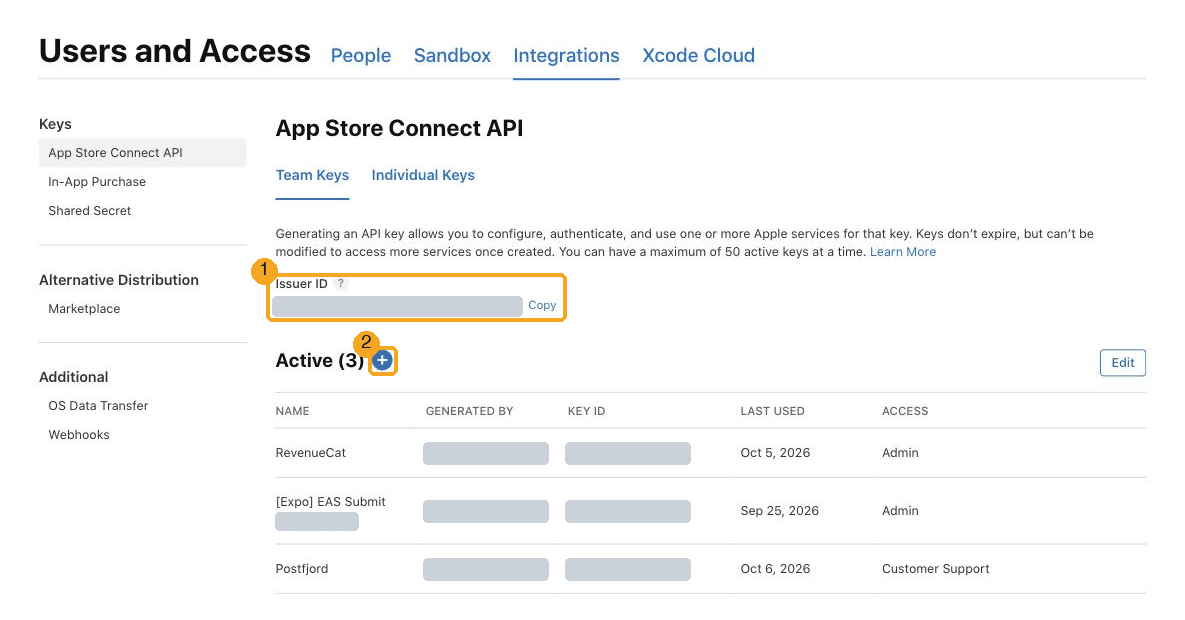
Open App Store Connect, then Users and Access, then Integrations, then App Store Connect API. The direct link is https://appstoreconnect.apple.com/access/integrations/api.
Under the first paragraph you see your Issuer ID (1). It is a long code with four hyphens. Press Copy next to it and paste it somewhere you can find it for a few minutes. It is a code, not a web address. Next to Active is the blue plus button (2). You press it in the next step.
2. Make a key with the App Manager role
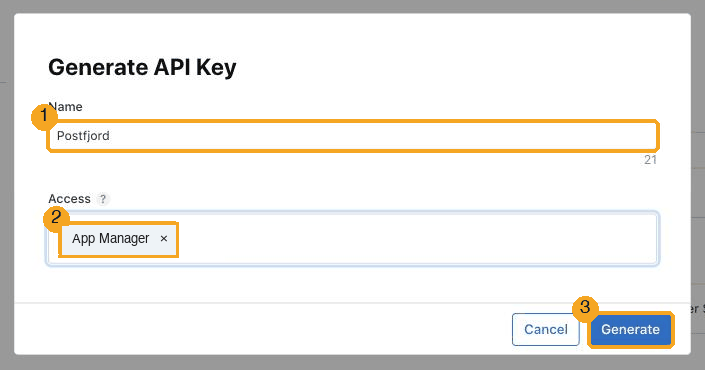
Press the plus. Give the key the name Postfjord (1). Under Access pick App Manager (2). Press Generate (3).
3. Download the key file and copy the Key ID
The new key appears in the list. On its row you see the Key ID, ten capital letters and digits. Copy it.
Press Download on the same row. You get a file that is named like AuthKey_ABCDE12345.p8. Apple lets you download it only once. Keep it safe. If you lose it, make a new key and delete the old one. Do not send the file to anyone but Postfjord, and only through the form in step 4.
4. Add the app in Postfjord
- Open All settings, then Mentions, then Your apps, then Add an App Store app.
- Type the Issuer ID you copied in step 1.
- Press Choose the .p8 file and pick the file you downloaded. Postfjord reads the Key ID from the file name, which looks like
AuthKey_ABCDE12345.p8. If you renamed the file, type the Key ID from step 3 yourself. - Press Find my apps. Postfjord asks Apple which apps your key can see and shows them as a list.
- Pick your app and press Add app.
Postfjord keeps the key locked and never shows it again. The list only reads your app names, and nothing is saved until you press Add app. The reviews come in a few minutes later, and then twice a day.
5. If your app is not in the list
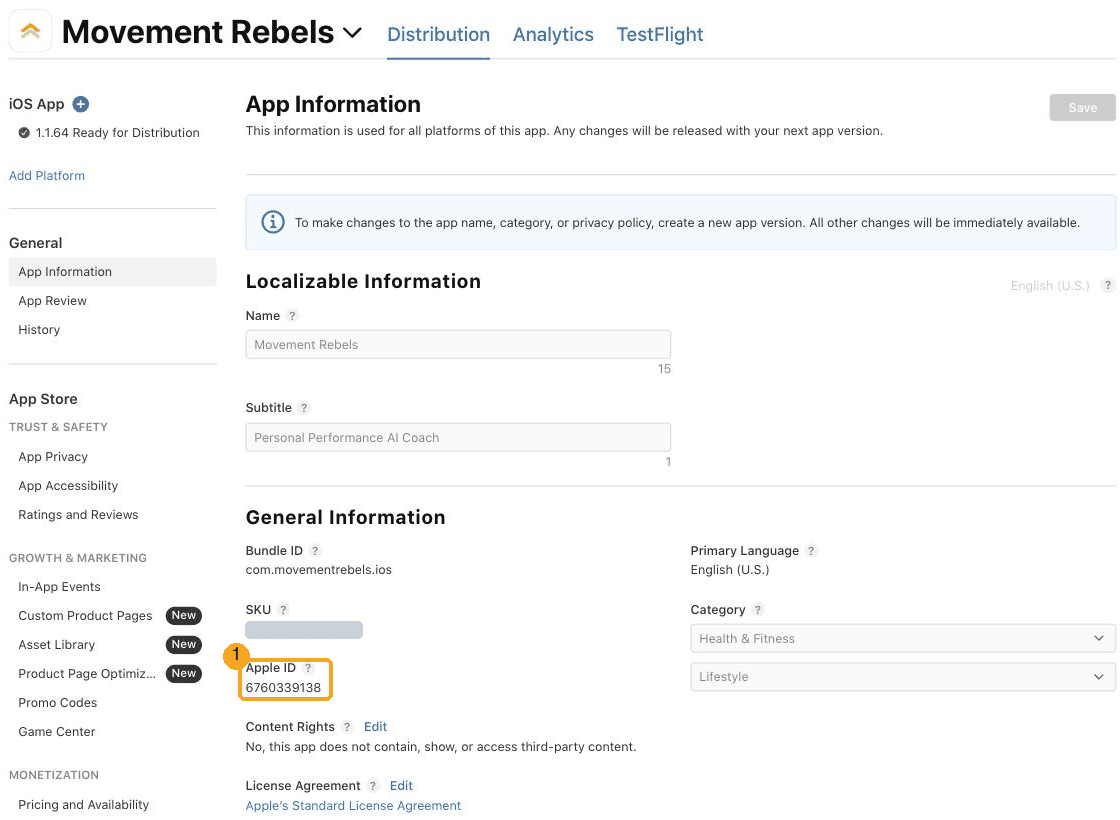
Press Type the Apple ID myself. In App Store Connect open Apps, pick your app, then App Information in the left menu. Under General Information you find the Apple ID (1), a number with 10 digits. It is also the number in the web address, after /apps/. Type it in the field and press Add app.
Google Play (Android apps)
You invite Postfjord's own account to your Play Console and give it two permissions. There is no key to make and nothing to download. The address to invite is:
play-reviews [at] postfjord-app.iam.gserviceaccount.com
The form in Postfjord shows the same address with a Copy button.
1. Open Invite new users
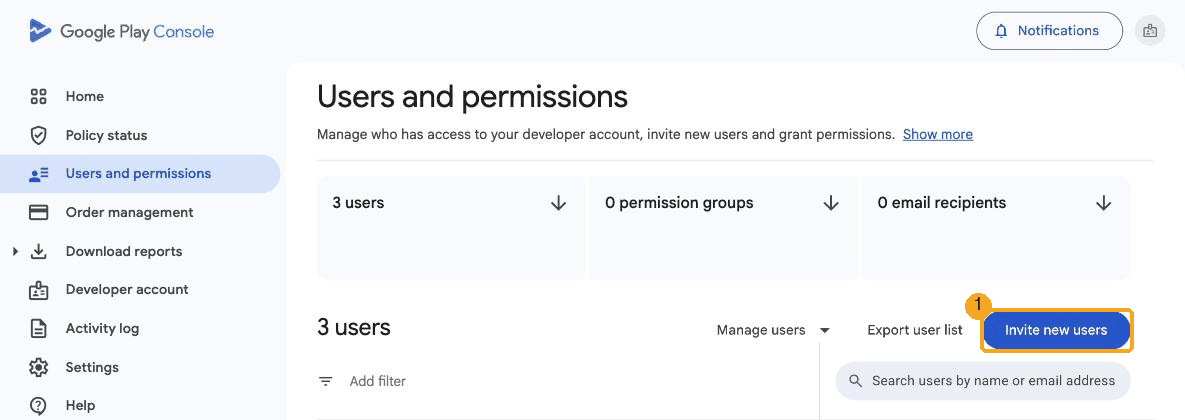
In Play Console open Users and permissions in the left menu. Press Invite new users (1).
2. Paste the address and pick your app
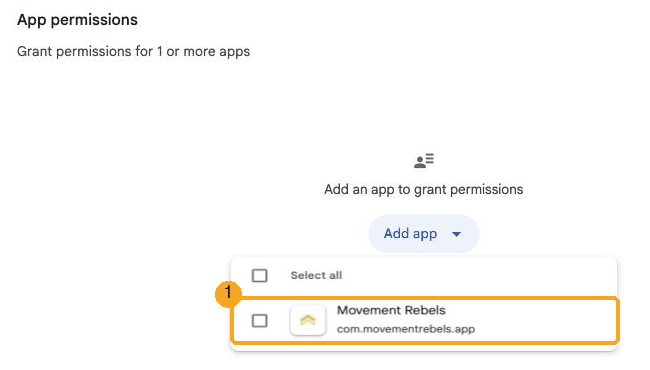
Paste the address in Email address. Further down, under App permissions, press Add app, tick your app and press Apply.
The line under the name of your app is its package name (1), for example com.sunriseyoga.app. You need it in step 4.
3. Tick two permissions
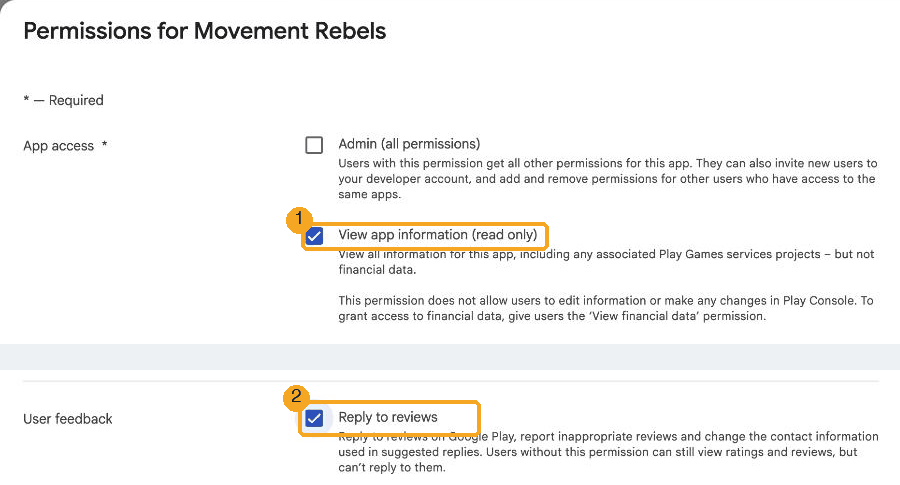
A window opens with the permissions for your app. Tick View app information (read only) (1) and Reply to reviews (2). Leave everything else empty. Postfjord cannot change your store listing, your releases or your numbers.
Press Apply, then Invite user, then Send invitation.
4. Add the app in Postfjord
- Open All settings, then Mentions, then Your apps, then Add a Google Play app.
- Type the package name from step 2.
- Press Add app.
If Postfjord says it cannot read the app yet, wait two minutes and press Add app again. Google needs a moment before an invitation works.
Google shares only the reviews from the last 7 days, and only those with words in them. A star rating without words does not come in. When you answer a review from Postfjord, the answer shows on Google Play under your app. It can be 350 characters long.
When something goes wrong
| Postfjord says | What it means | What to do |
|---|---|---|
| That looks like a web address | Something else was typed in the Issuer ID field, often the web address of the page. | Use the Copy button next to Issuer ID in step 1. |
| The Key ID is 10 capital letters and digits. | The Key ID has the wrong length or small letters. | Copy it from the row of your key in step 3. |
| Apple did not accept the key | The key file, the Issuer ID and the Key ID do not belong together. | Check the Issuer ID and the Key ID. Make sure the file is the one you downloaded for that key. |
| This key is not allowed to list apps | The role of the key is too narrow. | Make a new key with the role App Manager (step 2) and use that. |
| This key sees no apps | The key is on another account than your apps. | Open the account that owns the apps, or press Type the Apple ID myself. |
| Postfjord cannot read this app yet | Google has not accepted the invitation, or the two permissions are not ticked. | Check step 3, wait two minutes and try again. |
| Google Play has no app with this package name | The package name has a typo. | Copy it from the Add app list in step 2. |
| Another Postfjord workspace already follows this app | An app can be followed by one workspace at a time. | Write to hello [at] postfjord.com and we sort it out. |
| Postfjord could not use its Google Play account just now | The problem is on our side. | Try again in a few minutes. |
FAQ
Can Postfjord change my store listing or my app?
No. Postfjord only reads: it lists your apps and reads their reviews. The App Store key has the App Manager role, which is wider than that, because Apple only lets that role list apps. So make a key just for Postfjord, and delete it in App Store Connect any time you want to take the access back. On Google Play it has two permissions: view app information, and reply to reviews. It replies only when you press Send answer in Mentions.
How do I stop Postfjord from reading my reviews?
Press Remove next to the app under Your apps in Mentions. To close the door at the store as well, delete the key in App Store Connect, or remove the user play-reviews [at] postfjord-app.iam.gserviceaccount.com under Users and permissions in Play Console. Reviews that are already in Mentions stay until you delete them.
Why only the last 7 days on Google Play?
That is all Google hands out. Reviews that come in from now on are collected as they arrive, so after the first week nothing is missed.
How many apps can I add?
Up to 5 apps in one workspace, App Store and Google Play together.