Lesson 3 of 6 · 6 min
Clean up your photo
Quick recallYou want to change "$4" to "$4.50" in a headline. What is quickest?Think of your answer, then open.
Click the text and type it. For one number, typing is faster, and the AI does not know your prices.
A stray cup, a messy shelf, a dull background. Pick the photo, press Fjord tools in the bar at the top, and choose a tool. On a phone, tap the photo, then Fjord tools in the bar at the bottom.
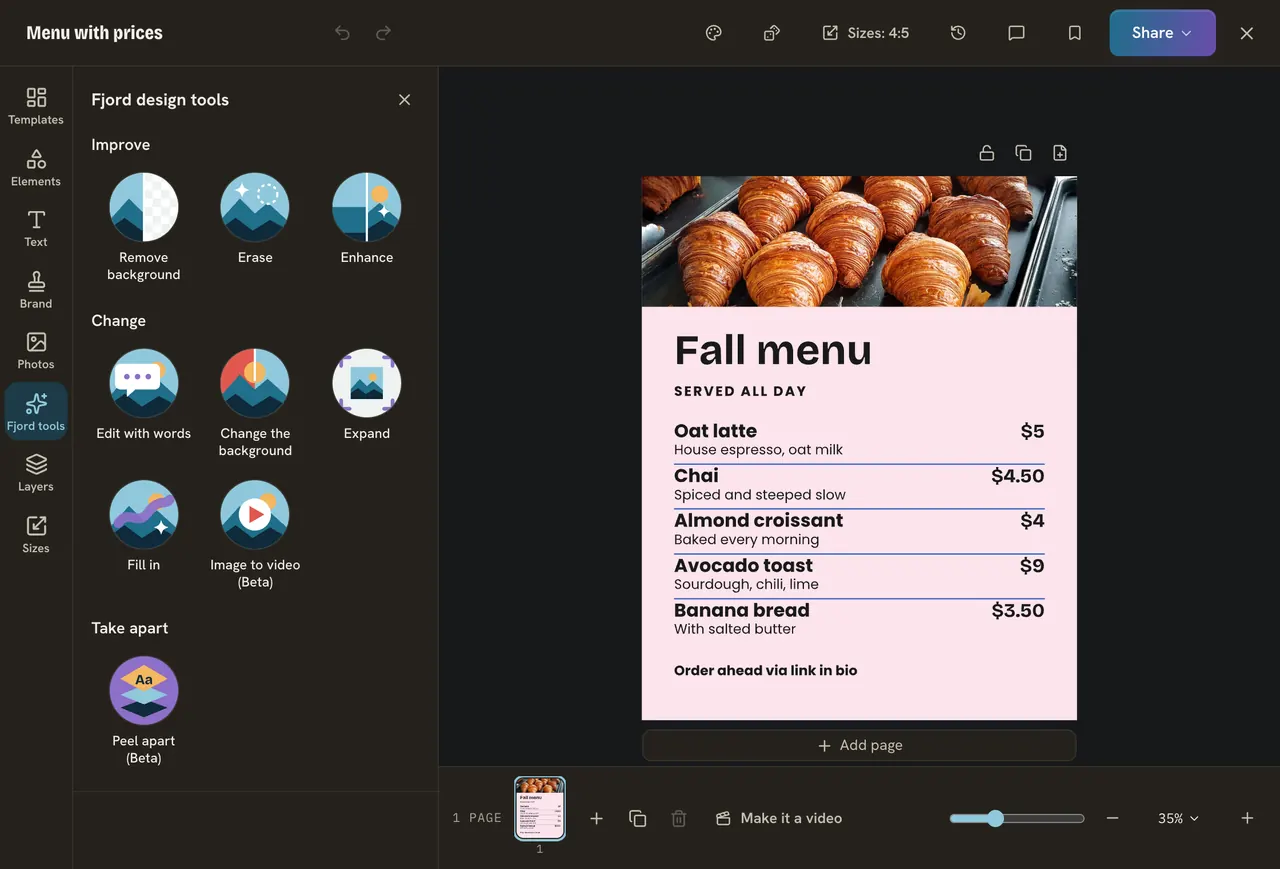
Remove background
Keeps the person or thing in front and takes the background away.
- Pick the photo, press Fjord tools, then Remove background.
- Wait about 20 seconds. You can keep editing.
- Look at the edges. Press Undo if hands or a table edge look rough.
It works best with one clear thing in front and room around it. The cut-out is saved in Media, and your original stays there too.
Erase
- Pick the photo, then Fjord tools, then Erase.
- Choose what to erase: Area (paint over it), Element (click a thing), Foreground or Text.
- Press Erase.
It works best on something small against a calm background. A big part or a busy background can come out blurry. Then press Undo and paint a smaller part.
Edit with words
- Pick the photo, then Fjord tools, then Edit with words.
- Write the change, for example "make the cup white".
- Paint over the part if only one part should change.
- Press Change it for, with the price on the button.
Change the background puts something new behind the person or thing in front: "a wooden table in morning light". Enhance makes a small or blurry photo bigger and sharper, 2 times or 4 times. Expand draws more around a photo, so a wide one can fill a tall story. Fill in changes one part you paint. Words work best in English. Check hands, faces and writing in the result, because AI gets details wrong.
When to use your hands
- Fit the frame: Crop. Free and exact.
- Brighten or change the look: Adjust and Filters.
- Paint a small part away, or back: Eraser brush.
- A real person: do not change how they look unless they said yes.
AI tools use your AI budget each time. Hand tools cost nothing, so start with one when it can do the job.
Do it
- Take the photo on your Corner Bean post and pick one problem.
- Fix it with one tool.
- Press Undo if it is worse, and try a clearer sentence once.
Quick check · 3 questions
Check what stuck
Your photo is crooked and the cup is cut off at the edge. Which tool?
Show the answer
Crop, by hand. Moving and zooming the photo inside its frame is free and exact.
You erase a sign from a busy street photo and the result is blurry. What helps?
Show the answer
Press Undo and paint over a smaller part. A small part against a calm background works best. A big or busy part can come out blurry.
You changed a photo with Edit with words. Where is your old photo?
Show the answer
Still in Media, and Undo or Use original brings it back. Each result is a new picture, and your old one stays.
In this course
- 1Meet the Fjord design toolsWhere the AI tools live in Design, what each is for, and what they cost. · 4 min
- 2Change the words with RewriteRewrite one text, a whole carousel or pick a template from a goal, and when to type the words yourself. · 5 min
- 3Clean up your photoRemove a background, erase something, change a photo with a sentence, and the jobs hand tools do better. · 6 min
- 4Edit a flat picture and translate a designTurn a picture with words on it into text you can change, and copy a design into another language. · 5 min
- 5Make a photo move, and let Bo fill your pagesTurn a photo into a five second video, add motion with Animate for me, and fill a design with words Bo wrote. · 5 min
- 6Check the result before you postA short checklist for any AI result, what each run costs, and what to do when it goes wrong. · 4 min