Lesson 5 of 7 · 3 min
Layers and pages
Quick recallWhere do you find a circle, an arrow and a star?Think of your answer, then open.
Elements, then Shapes. Shapes lives inside Elements.
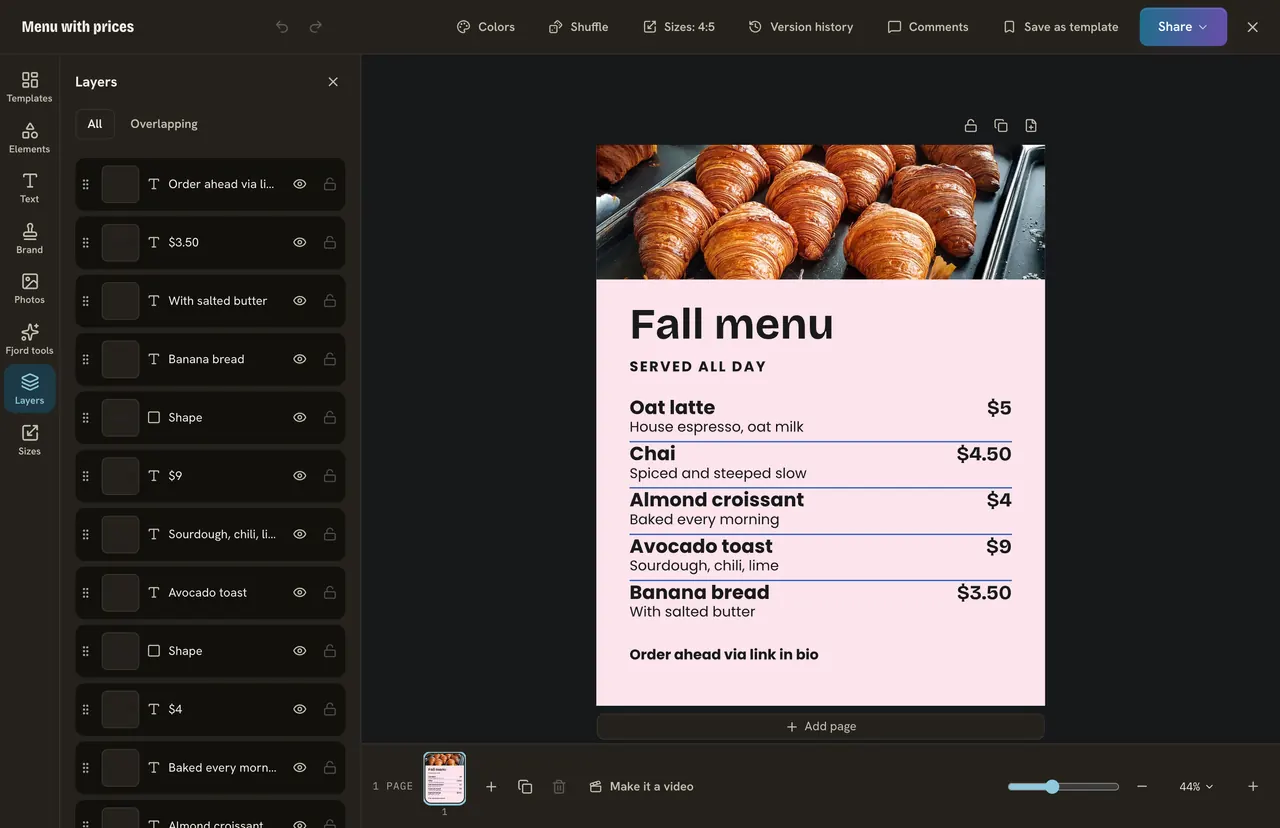
Every text, photo and shape is a layer. They stack like paper on a desk, and the top one hides what is under it.
Layers
Press Layers, or Alt+1. The list shows everything, top first.
- Drag a row to change the order.
- Press the eye to hide a layer, the lock to stop it moving.
- Double click a name to rename it.
To line things up, pick a layer, press Position, then Arrange. Shift and click picks several layers, and Cmd+G (Ctrl+G) groups them.
Pages
Above the top right corner of the page are Lock page, Duplicate page and Add page. A design holds up to 10 pages, and several pages go out as a carousel.
Do it
- Open Layers and rename your headline "Headline".
- Drag the badge to the top of the list.
- Pick the headline, press Position, Arrange, then left under Line up with the page.
- Press Duplicate page and write "Sold out by 10 am" on the copy.
Quick check · 3 questions
Check what stuck
A shape hides part of your photo. How do you fix the order?
Show the answer
Drag the shape's row below the photo in Layers. Layers at the top of the list sit over the ones below.
What does the lock on a layer do?
Show the answer
Stops it from moving. Lock keeps a layer in place so you cannot move it by mistake.
How do you make a second page like the first?
Show the answer
Press Duplicate page. Duplicate page puts a copy right after the page you are on.
In this course
- 1Open Design and find a templateWhere Design is, and how to find a template with the search and Filter. · 3 min
- 2Change a template into yoursEdit the words, change the colors, put your brand on it, and undo anything you do not like. · 3 min
- 3Add your photosUpload your own photo or find a free one, swap one in a template, and use a photo as the background. · 3 min
- 4Elements, shapes and textAdd a shape, an icon or a sticker, add your own text box, and choose a font. · 3 min
- 5Layers and pagesSee, reorder, lock and line up the layers on your page, and add more pages for a carousel. · 3 min
- 6SizesWhy feed posts, stories and banners need different sizes, and how to save one design in several. · 3 min
- 7Save, download, post and schedulePress Share to save your design, download it, or turn it into a post and schedule it. · 3 min