A Flow ties your parts together into one path, from a post to an email. Someone sees your post, comments a word, gets a DM with a link to your page, signs up, and gets your emails. You pick the steps, and you write each one in the same editor you always use. Nothing reaches anyone before you press Go live.
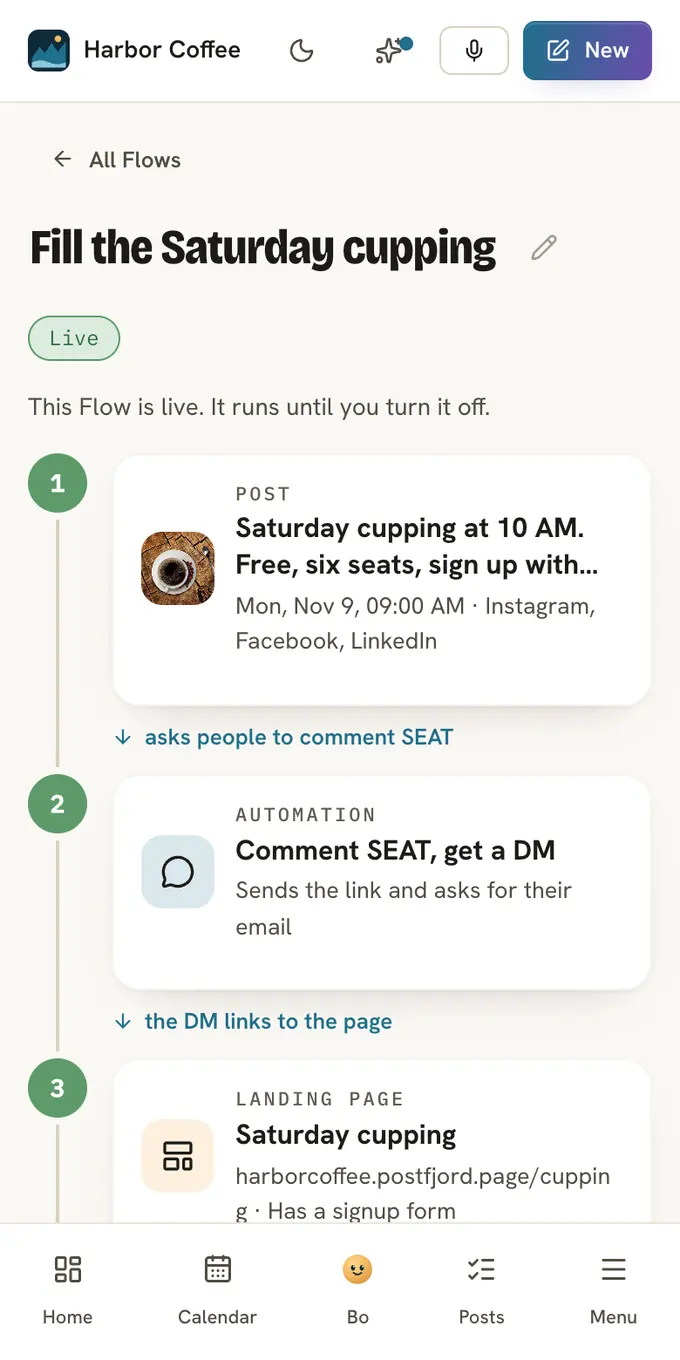
Open Flow in the menu, under Automate.
Flow is on the paid plans: Solo, Studio and Agency. On Free, the Flow page shows what Flow does and a button to the plans. Pick a plan, and Flow opens right away.
Build a Flow step by step
- Open Flow and press Start building. A new Flow opens, called New Flow.
- Tap the name at the top and write your own, for example "Birthday gift".
- Under Add a step, tap what comes first, for example Post. Its usual editor opens, with a dark band at the top that says which step of which Flow you are in.
- Write the part as you always do. Where the editor usually says Publish now, Schedule, Publish, Save (the DM automation) or Start, it says Add to Flow. A post gets the same checks as when you schedule it.
- Press Add to Flow. The part is saved as a draft and you are back on the Flow page, where the step now says Ready.
- Tap the next step, set it up and press Add to Flow again. Go on until the whole Flow is there.
- Press Go live, or Keep as draft to finish later.
Everything saves by itself as you go. You can leave in the middle and come back: the Flow waits in your list of Flows as a draft, and a step you have not finished says Not done yet. Tap a step to open it again, or the bin to take it out. A draft taken out is deleted, unless it is in use. A part you made before you added it to the Flow, and every part of a Flow that has been live, is never deleted this way: it stays as it is, outside the Flow.
The steps you can add
- Post. Opens the composer. Pick the day and time when the post should go out. With no time, it goes at the next good time when the Flow goes live. A Flow can have up to 14 posts.
- Automation. Opens the DM wizard for "Comment a word, get a DM". Pick the word people comment and write the DM. When the Flow has a post, the wizard shows that post with its picture, and the automation answers comments on that post only. If you tied the post to another automation in the composer, the Flow leaves it and tells you. It is tied to the post by itself, the moment the post goes out. Press Pick another post to choose other posts instead. When the Flow has no post yet, the automation listens under any of your posts. You can leave the link empty: when the Flow has a landing page, its link goes in the DM by itself. A Flow with no landing page needs a link here before it can go live, unless the DM asks for an email address. Needs a connected Instagram or Facebook account.
- Landing page. Makes a page on your postfjord.page address with a signup form, and opens it in the page editor. Needs an address on postfjord.page. Keep the Flow's own signup form on the page: it is the one that adds people to the Flow. If you take it off, the step says Not done yet and the Flow cannot go live until it is back. Another form you put on the page works as it always does, but does not start the Flow's emails.
- Welcome email. Goes to each person as soon as they join the Flow and confirm their email address.
- Email. A later email. It goes two days after a person joins, and you can change the wait.
- Birthday email. Goes every year at 09:00 on the birthday of each person who joined through the Flow, and only to them.
The emails need email to be on. If something is missing, the step's button is grey and the line under it says how to fix it.
How the steps work together
Postfjord ties the steps together for you, and the Flow page says how on the line between two steps:
- Asks people to comment WORD: a post followed by the automation. Write the word in your post, so people know what to comment. The automation answers on this post.
- The DM links to the page: when the Flow has an automation and a landing page, and you left the DM's link empty, the DM's link goes to the page. A link you wrote yourself stays.
- A signup starts the email: everyone who signs up on the page's form, or gives their email address in the DM, joins the Flow. The welcome email and the later emails start for them.
- People from the Flow get it on their birthday: the birthday email goes only to people who joined this Flow. The page's form asks for the date of birth.
A person who joins both through the DM and through the page gets each email once.
Let Bo build the steps
On an empty Flow, Bo offers to build the steps for you. Press Let Bo build the steps, write in one sentence what the Flow should do, and press Build the steps. Bo plans the posts, the DM, the page and the emails, and makes each one as a draft, in a few minutes. They show up as steps, and you open and change each one like a step you added yourself. Where Bo needs a fact you did not give, like a link or a price, he leaves a blank in [square brackets] for you to fill in. It uses a little of your AI budget.
Go live
Press Go live. Postfjord shows what will happen and asks first. Then it:
- schedules the posts at their times. A post whose time has passed goes at the next good time instead, never sooner than half an hour from now.
- turns on the automation.
- publishes the landing page and switches on its form.
- starts the emails.
A step that is not done yet is left out. A post that needs a picture stays a draft, and the Flow says so. A Flow you built runs until you close it or turn it off: it has no last day, unless you give it one (see below).
The emails start before the automation. If the emails cannot start, the automation stays off too, so nobody gives you an address and then waits for an email that never comes. The Flow says what to fix.
A paused workspace can build a Flow but not go live: resume it first.
Close a Flow or turn it off
When a campaign is over, you choose what happens to the people who already joined.
- Open the Flow and press Turn off. A box asks how.
- Pick one:
- 1. Close to new signups. Nobody new can join. People who already signed up still get their emails. This is the first choice. - 2. Stop everything. Everything stops, the emails too. People who signed up get no more emails.
- Tick Also take the landing page down if you want the page offline too. Links to the page then stop working. Leave it off and the page stays online.
- Press Close to new signups or Turn off now.
Close to new signups
- Posts that are not out yet are stopped. Posts that went out stay.
- The automation stops answering comments.
- The signup form closes. Someone who tries to sign up is told it is closed.
- Every email keeps going to the people who already joined: the welcome email, the later emails and the birthday email, next year too.
The Flow page says Closed to new signups and how many people still get the emails. A closed Flow does not count toward the Flows you can run at once, since it takes nobody new. That is also why its automation and its signup form stay off while it is closed: switching them on by hand is refused, and Open again switches them on.
A closed Flow can:
- Open again. Press Open again. A stopped post whose time is still ahead keeps its time, and one whose time has passed goes at the next free time. The automation answers again, the form opens and the page goes online again if it was taken down. The emails never stopped.
- Stop everything. Press Stop everything to pause the emails too.
Stop everything
The automation stops answering comments, every email pauses, also for people who already signed up, and posts that are not out yet are stopped. Posts that went out stay. Your contacts, their tags and their email consent stay.
The signup form closes too, also when the page stays online: someone who tries to sign up is told it is closed. A birthday email due while the Flow is off is skipped. Next year it goes out again.
While the Flow is off, its parts wait for it: in their editors you press Add to Flow, not Resume or Publish. Go live again on the Flow page starts them.
Close to new signups automatically
A Flow can close by itself. On the Flow page, under Close to new signups automatically:
- Last day to sign up. The Flow closes at midnight after this day, in your workspace's time zone.
- Close after this many signups. The Flow closes when this many people have signed up on its page and confirmed their email address since it went live. Only confirmed people count, so made-up addresses cannot close your Flow. The page shows how many so far.
Pick one, both or neither, and press Save. You can set it before you go live or while the Flow is live. When one is reached, the Flow closes to new signups the same way as when you close it yourself: the people already in keep getting their emails. Once the last spot is taken, nobody new can sign up. Someone who signed up before that and confirms their email a little later still gets in: they signed up while the Flow was open. So the count can end a little above your number.
Press Turn off automatic close to keep the Flow open until you close it yourself.
Go live again
A Flow you turned off can be used again. It opens like a draft: change any step, add new ones or take some out. Then press Go live again. Postfjord uses the parts the Flow already has, so nothing is made twice:
- the automation is turned on again, unless you had switched it off yourself before you turned the Flow off.
- the emails start again on the Flow's tag, for everyone who joins from now. An email you paused yourself before you turned the Flow off stays paused.
- the landing page goes online again if it was taken down, with any changes you made. Its form adds people to the Flow again once the emails have started.
- posts that Turn off stopped, and new posts, get a time from now. A post you cancelled yourself stays cancelled. A post whose time has passed goes at the next good time. Posts that already went out stay as they are.
To throw away a Flow that never went live, press Throw this Flow away. Its drafts are deleted with it, and the Flow leaves your list. A post or automation you had made before you added it to the Flow stays.
A last day to sign up that has passed, or a number of signups that was reached already, is taken off when the Flow goes live again, and the Flow says so. Set a new one if you want one.
Delete a Flow that has been live
A Flow you turned off, or a Flow from Bo you stopped, can leave your list.
- Open the Flow.
- Press Delete this Flow, and press it again in the box that asks.
The Flow is gone from the list. Its parts stay as they are: posts that went out, the automation, the page, your contacts and the emails they got. They are off already, and you find them on their own screens. They no longer belong to the Flow, so you can add them to another Flow. A Flow that is live, closed or a Flow from Bo that is Done is turned off or stopped first.
If the button does not work, a line under it says why. Try again.
Let Bo plan the whole Flow
Bo can also plan a Flow for you from one sentence, with the posts spread over the days you pick.
- Open Flow.
- Under Start a Flow, press Let Bo plan it and write what you want to happen. For example: "Fill 20 spots in my 6-week beginner program that starts November 3. $149, early bird $119 until October 24." Need an idea? Tap Yoga studio, Cafe or Coach for an example.
- If you sell something, tick Add an offer and fill in what you sell, the price, a link to buy or book, and the last day of the offer. You can skip this.
- Pick the first and the last day. A Flow that Bo plans runs for up to 42 days.
- Pick the channels to post on and how many posts you want, up to 14.
- Press Make a plan. Bo writes the plan, then makes every part as a draft. It takes a few minutes.
A plan uses a little of your AI budget, like a draft from Bo. The drafts are switched off: no post is scheduled, the DM answers nobody, the page is not online and no email is sent.
Why this plan at the top says in a sentence or two why Bo planned it this way. It is in the language your app is in. The posts, the DM, the page and the emails are in your brand's language.
The first post is never at a time that has passed. If you make a plan in the evening, the first post goes at the next good time, like 07:30 the next morning, and never sooner than half an hour from now. If the last day of the Flow has no time left, the post goes the next morning, and the last day of the Flow moves to that day.
When Bo needs to know something
Bo never makes up a link, a price, a date or a time you did not give him. Where one is needed, he leaves a blank in square brackets, like [link to the schedule], and asks you for it. The Flow then opens on Bo needs a few things before any drafts are made:
- Answer each question. A link starts with https://.
- Press Answer and make the drafts. Bo writes your answers in everywhere the blank was, and makes the drafts.
You can also press Make the drafts without answering. The blanks then stay in the texts, and the overview says Has a blank to fill in on each part that has one.
Pictures for the posts
Bo looks at the newest pictures in your media library and picks one for each post when one clearly fits. A picked picture shows on the post in the plan, and you can change it in the post once the drafts are made. A post on Instagram or Pinterest with a picture can be scheduled at once instead of waiting as a draft. TikTok and YouTube take a video, so Bo picks nothing for them. If no picture fits, the post says Needs a picture, as before.
On Postfjord's Claude, or your own Claude key, Bo looks at the pictures themselves. On another AI key he reads their names, alt texts and tags, so a picture with a clear alt text is easier for him to pick.
What is in a plan
- Posts. Each post has a day, a time and its text. A post for Instagram, TikTok, YouTube or Pinterest needs a picture or video, so it is saved as a draft until you add one.
- DM when someone comments. A word, for example PROGRAM. When someone comments that word under any of your posts, Postfjord sends them a DM with a link to your page and a button to get the details by email. When they tap the button, the DM asks for their email address.
- Landing page. A page on your postfjord.page address with your offer and a signup form.
- Emails. One to three emails. The first one goes out right after a person confirms their address. The others follow a number of days later.
When your goal needs it, the plan can also have:
- A follow check. Before the link, the DM asks people to follow you and tap I follow you. Someone who does not follow yet is asked to follow first.
- More questions on the form. A first name, a phone number and a date of birth, with a line on why you ask. Bo only asks for a phone number or a date of birth when your goal needs them, like booking people in or a birthday gift. See Signup forms.
- A birthday email. It goes out every year at 09:00 on the birthday of each person who signed up through the Flow, and only to them. It needs the form to ask for the date of birth. If you take that question away, the birthday email is left out and the plan says so.
For example: "When someone comments BIRTHDAY on our pinned post, check they follow us, send them a link to a form for name, phone and date of birth, and on their birthday send a class for two."
Before Bo makes a plan, he checks that you have an address on postfjord.page and that email is on. If one is missing, he says so above Make a plan, with a link to fix it. You accept the rules for pages when you pick the address. To plan without the page or the emails, tick Plan without these parts.
A part your workspace cannot have yet is left out, and the plan says why under What is left out. For example, the DM needs a connected Instagram or Facebook account, and the form and the emails need email to be on.
Each thing under What is left out has a link to where you fix it: Connect a channel, Turn on email or Pick an address on postfjord.page. Once it is fixed, press Plan again. Postfjord plans the same goal again with the new part, and the old plan is put away. A plan cannot add a part afterwards, since the posts, the DM and the emails are written to fit together.
The word to comment can have any letters, also Å, Ä and Ö, like FÖDELSEDAG.
Check the drafts
When Bo is done planning a whole Flow, the Flow opens on an Overview: every part in the order a person meets it, from the posts to the last email. Each part says Ready, or what it still needs, like Needs a picture.
- Tap a part to open it, or press Start checking to begin at the top.
- Each part shows how it will look: the posts as in the feed, the DM in a phone, the page and each email as people get them.
- Press Edit to change a part. It opens in its own editor, the same one you use without a Flow, so you can add a picture, change a word or move a post to another day. In the email editor you can also tell Bo what to change. Press Back to the Flow at the top to come back to the same step.
- Press Next for the next part, or Back for the one before. On a phone you can also swipe left and right.
The last step is Go live. It lists what is not ready yet, with a link to each part. If your workspace has not accepted the rules for pages, or sending email is not open yet, it says so here with a link to fix it.
You can leave the Flow and come back later: the drafts wait. You can also find each draft in its usual place, in the calendar and under Automations, Pages and Email, and change it there.
Go live with a Flow from Bo
On the last step you choose what starts now:
- Schedule the posts. Off: the posts wait as drafts on their days.
- Turn on the DM. Off: the DM is saved but does not answer anyone yet.
- Start the emails. Off: the emails are saved but nobody gets them yet.
Press Go live. Postfjord switches on the signup form, puts the page online when anything links to it, schedules each draft post at the time it has now and switches on what you chose. A post that still needs a picture, or whose time has passed, stays a draft and the Flow says so. If the page cannot go online, the DM and the welcome emails that link to it stay off until you publish it. A part you deleted is left out. Press Go live later to keep everything as drafts.
A paused workspace can make drafts but not go live: resume it first.
To throw a Flow away before it goes live, press Throw this Flow away on the overview. Its drafts are deleted with it: the posts, the DM, the page, the form and the emails, so they do not take up room in your plan. A part you switched on or scheduled yourself stays.
Stopping a Flow from Bo that never went live, from an AI app or the API, throws it away the same way. If going live stopped half way, what it had switched on is stopped first, and then deleted with the drafts.
When Bo could not make the drafts
Sometimes Bo writes the plan but cannot make the drafts, for example when another page already uses the address. The Flow then shows the plan as text, with the reason at the bottom. Fix it, and press Make the drafts. You can also change the plan first, as below.
Tell Bo what to change
Above the plan is a box called Tell Bo what to change. Write what you want in your own words, or press the microphone and say it. For example: "move the first post to Friday", "make the DM shorter" or "add the landing page". Press Change the plan. Bo makes the whole plan again with your change and keeps the rest as it was. Why this plan then says what Bo changed. Nothing is made until you press Make the drafts.
Bo can change one plan 10 times. After that, edit the fields yourself or make a new Flow. Each change uses your AI budget, like a new plan. If you edited fields, save or undo them first, so Bo works on the plan you see.
Edit the fields yourself
Every part is a field you can edit: the text of a post, its day and time, the word to comment, the DM, the page and each email. Press Remove on a part you do not want. When you change the word to comment, your posts change with it when you press Save. When you remove the DM, the sentences that ask people to comment the word are taken out of the posts. If no post asks for the word, or the emails have no way in (no page and no email question in the DM), the plan says so under What is left out. When you change something, a bar shows at the bottom of the screen. Press Save to keep your changes, or Undo to go back.
Save your changes before you press Make the drafts. Bo makes exactly the plan you saved, and ties the parts together with one tag for this Flow.
Once a Flow is live, each part has its own screen. Open it from The parts to change it later.
What this Flow did
A running Flow shows how many people it brought in, and its numbers: posts out and waiting, comments with the word, DMs sent, email addresses collected, confirmed addresses, emails sent, clicks in the emails, page visits, taps on the page and signups. Postfjord counts them when you open the Flow, at most every five minutes. Press Count again for a new count. Clicks in the emails show once 10 emails have gone out. Below that, so few people could be told apart, and the Flow says there are too few to show.
Stop a Flow from Bo
A Flow Bo planned is built for the days you picked, so it is stopped for good, not turned off: to run it again, plan a new one. Press Stop this Flow. It is there for a done Flow too, since its DM and emails keep running until you stop them. Posts that are not out yet are cancelled, the DM and the emails stop, the signup form is switched off and the page is taken down. Your contacts, their tags and their email consent stay.
A Flow from Bo also turns Done by itself 14 days after its last day. A Flow you built has no last day.
FAQ
What happens to people already in when I close a Flow?
They keep getting every email: the welcome email, the later emails and the birthday email, every year. Closing only stops new people from joining: the posts that are not out yet, the automation and the signup form. If you want their emails to stop too, press Stop everything.
Can a Flow close by itself?
Yes. Give it a last day to sign up, a number of signups, or both, under Close to new signups automatically. It closes the same way as when you close it yourself.
Can a Flow send something on people's birthdays?
Yes. Say it in your goal, for example "a gift on their birthday". Bo adds a date of birth question to the form and a birthday email that goes out every year on the day, only to the people the Flow brought in.
Can I tell Bo what to change?
Yes. Write or say it in Tell Bo what to change above the plan, for example "make the DM shorter". Bo makes the plan again with the change, and you read it before you launch.
Does anything go out before I press Go live?
No. Every step is saved as a draft: the posts wait, the automation is off, the page is not online and nobody gets the emails. Postfjord starts them when you press Go live.
How long does a Flow run?
A Flow you build step by step runs until you close it, turn it off, or it closes by itself on its last day or after its number of signups. You can open it again later. A Flow Bo plans runs for the days you pick, up to 42, and its DM and emails keep running until you stop it.
Can I save a Flow and finish it later?
Yes. Everything saves as you go. Leave whenever you like: the Flow waits as a draft in your list of Flows, and each step shows if it is done.
Will someone get the welcome emails twice?
No. A person can reach the Flow through the DM and through the page, but both end on the same tag, and the emails start once per address.
Why does the Flow page show my post's picture?
The post step reads the post as it is now. Change the post in the composer, and the Flow page shows the new text, time and picture.
Do people have to confirm their email?
Yes. Every address from the DM or the signup form gets an email to confirm first. Nobody gets your emails before they confirm, and a person who asked you to stop never gets a DM.
Does a Flow give me more posts or automations than my plan has?
No. A Flow uses the same posts, automations, pages and AI budget as everything else in your workspace. A post past your plan's posts for the month is saved as a draft.
Is Flow on the Free plan?
No. Flow is on the paid plans: Solo, Studio and Agency. If your workspace moves from a paid plan to Free, every Flow that is live stops by itself. Its posts that are not out yet are cancelled, the DM and the emails stop and the page is taken down. Nothing is deleted: your Flows, their parts and your contacts stay. The Flow page on Free lists the Flows that stopped.
Picking a paid plan again does not start them. Open the Flow and press Go live again when you want it running. A Flow Bo planned stays stopped, so ask Bo for a new one.
How many Flows can I run?
Up to 10 at a time. A Flow that is closed to new signups does not count. Bo can plan up to 20 Flows a day for you.
Can I start a Flow from ChatGPT, Claude or Gemini?
Yes. Connect Postfjord to your AI app and say "start a flow" and what you want. It shows you the plan and asks before it launches. See Postfjord in AI apps.